Large PDFs are hard to email and slow to upload. Most of a PDF's size usually comes from the pictures inside it. The Compress PDF tool recompresses those images at a lower quality and leaves the text and graphics as they are.
Steps
- Open Compress PDF and choose your file.
- Pick a quality: Smallest file, Balanced or Better quality.
- Select Compress PDF and compare the sizes shown.
The trade-off
Lower image quality means a smaller file but softer pictures, so check the result before you send it. Text stays selectable and searchable. A PDF that is mostly text, or whose images are already small, may barely shrink; PDFkoko only offers the compressed file when it is actually smaller.
If the result is not smaller than the original, keep your original file. Try a lower quality, or leave the PDF as it is.
Related articles
PDF Tips and Tutorials
How to merge PDF files for free
Combine several PDFs into one document in a few clicks, without installing anything.
PDF Tips and Tutorials
5 Best Online PDF Converter Tools in 2026: Free Options to Try
A fair comparison of five online PDF converter tools: PDFkoko, iLovePDF, Smallpdf, PDF24 Tools and Sejda PDF. See what each does, how free use works and who it suits.
PDF Tips and Tutorials
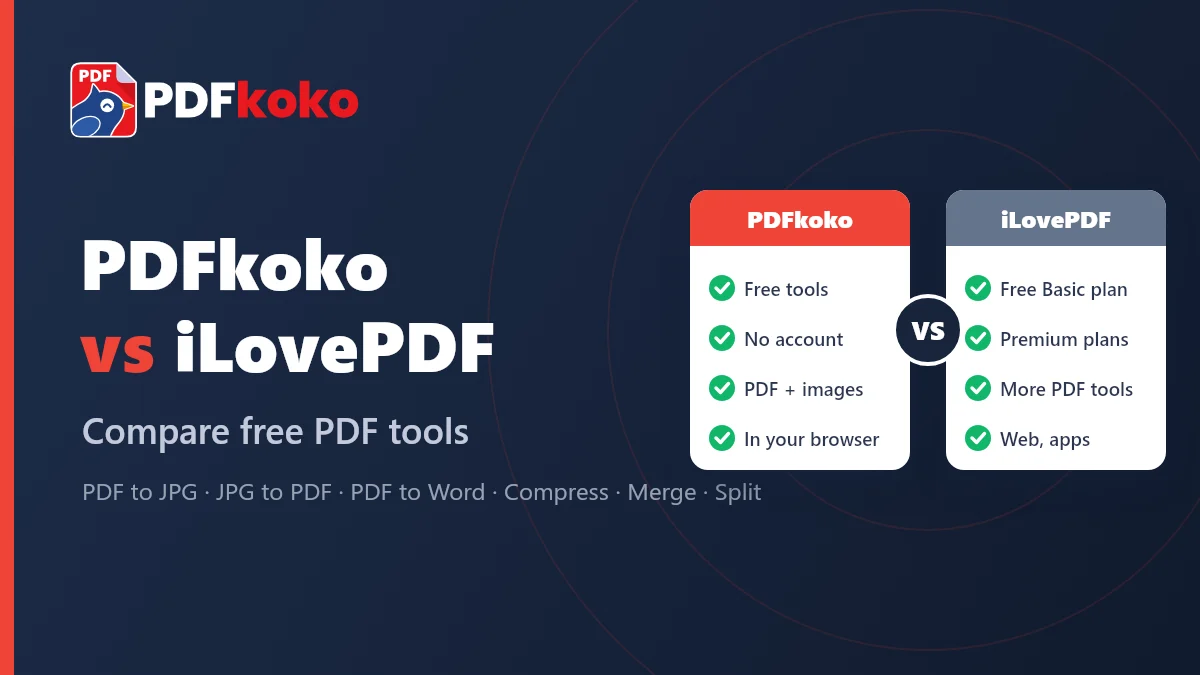
Is PDFkoko a Free Alternative to iLovePDF? Compare PDF and JPG Tools
An honest comparison of PDFkoko and iLovePDF: which PDF and JPG tools each offers, what is free, and which one suits the job you need to do.