In this guide
- What is JPG to PDF conversion?
- Why turn images into a PDF?
- How to convert JPG to PDF online with PDFkoko
- How to combine multiple JPG images into one PDF
- How to arrange the image order before conversion
- Choosing a PDF page size
- Portrait vs landscape orientation
- Image quality and file size
- Practical uses
- Common problems and solutions
- Frequently asked questions
- Conclusion
Photos and scans are easy to take but awkward to share. Ten separate images mean ten attachments, a messy upload form and no guarantee that anyone sees them in the right order. A single PDF solves all three problems: one file, one page per image, and the order you chose.
This beginner's guide shows how to convert JPG to PDF online for free with the PDFkoko JPG to PDF converter, and explains the settings that make a real difference: image order, page size, orientation, margins and file size.
What is JPG to PDF conversion?
JPG to PDF conversion places one or more JPG images onto the pages of a PDF document. The pictures themselves stay pictures; the PDF simply wraps them in a format that looks the same on every device and is accepted by almost every form, printer and email system. You may also see it called images to PDF, JPEG to PDF or photo to PDF. JPG and JPEG are the same format.
Why turn images into a PDF?
- One file instead of many. Combine photos into a single document that is easy to attach or upload.
- Fixed order. Pages stay in the sequence you chose.
- Print-ready pages. Standard page sizes such as A4 and Letter make printing predictable.
- Wide acceptance. Many online applications ask for PDF files only.
How to convert JPG to PDF online with PDFkoko
The tool runs in your browser. There is nothing to install, and your images stay on your device.
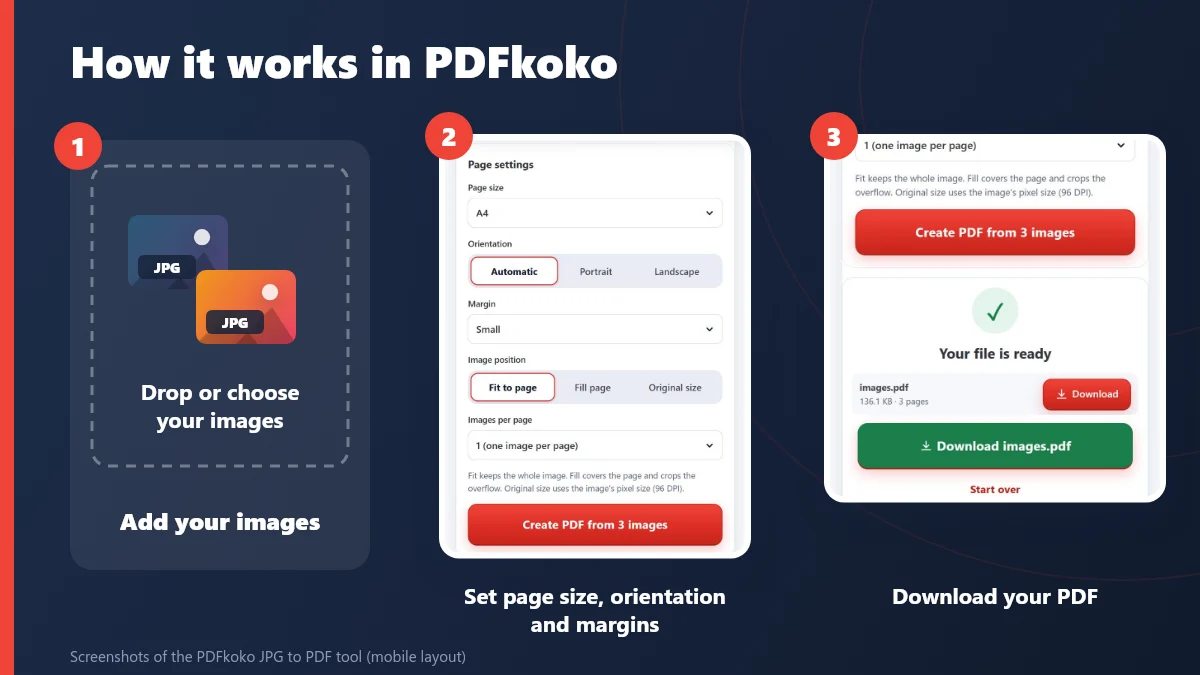
Step-by-step instructions
- Open the JPG to PDF converter.
- Choose your images or drag them onto the page. JPG, JPEG, PNG and WebP all work.
- Check the thumbnails. Use the arrows or drag them to change the order, rotate any image that is sideways, or remove one you do not want. Add more images lets you add files later.
- Choose the page settings: page size, orientation, margin, image position and images per page (explained below).
- Select Create PDF. PDFkoko shows page previews so you can check the result.
- Download the finished PDF.
How to combine multiple JPG images into one PDF
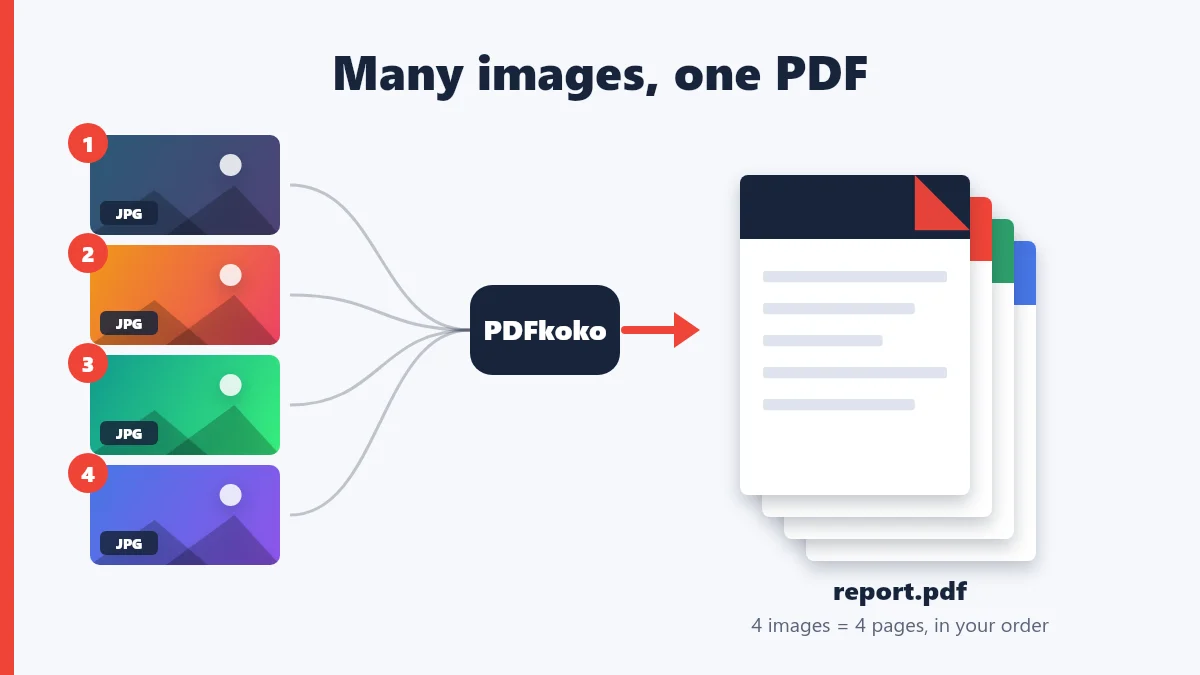
Select all the images in one go, or add them in several batches. Every image becomes a page, so four images give a four-page PDF. If you prefer fewer pages, set Images per page to 2 or 4 to place several pictures on each page.
How to arrange the image order before conversion
Note: the order of the thumbnails is the order of the pages in your PDF, so check it before you select Create PDF.
The number on each thumbnail is its page number. Drag a thumbnail to a new position, or use the left and right arrows under it. The order you see is the order in the PDF, so check it before you create the file. This matters for multi-page documents such as scanned forms, receipts and certificates.
Choosing a PDF page size
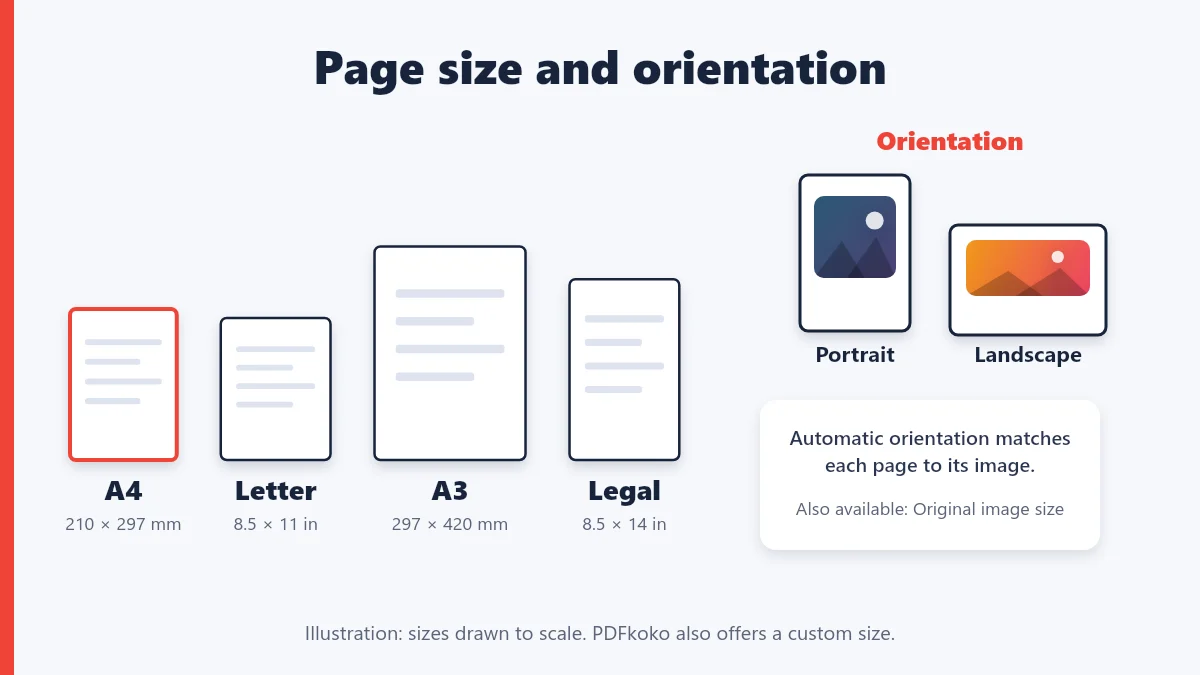
PDFkoko offers these page sizes:
- A4 (210 × 297 mm): the standard in most countries outside North America.
- Letter (8.5 × 11 in): the common US and Canadian size.
- A3 (297 × 420 mm) and Legal (8.5 × 14 in): larger formats for posters and legal documents.
- Original image size: each page matches its image instead of a fixed paper size.
- Custom size: enter your own width and height in millimetres.
Use A4 or Letter if you plan to print, or if the person receiving the file expects a normal document.
Portrait vs landscape orientation
Portrait pages are taller than wide, which suits documents, certificates and photos taken upright. Landscape pages are wider than tall, which suits panoramas, slides and screenshots. The default setting, Automatic, chooses the orientation that fits each image, so a mix of upright and sideways photos works without extra effort. You can also force Portrait or Landscape for every page.
Two more settings control how the picture sits on the page. Fit to page keeps the whole image and may leave blank space; Fill page covers the page and crops the overflow; Original size uses the image's pixel size. Margins range from none to large, or a custom value in millimetres.
Image quality and file size
JPG and PNG images that you have not rotated are placed in the PDF without being re-compressed, so they look exactly as they did. The trade-off is file size: a PDF made from photos is about as large as the photos. For example, three small test images of 134.5 KB in total produced a 136.1 KB PDF.
- For email, start with smaller or lower-resolution photos.
- If the finished PDF is too large, shrink it with Compress PDF, which recompresses the images inside the PDF.
- To reduce photos before converting, use Compress Image or Resize Image.
Practical uses
- Phone photos. Turn pictures of documents into one PDF.
- Scanned pages. Combine page scans in the right order.
- Receipts. Put several receipts into one file for an expense claim.
- Online applications. Prepare ID copies, forms and supporting documents that must be a single PDF.
- Notes and certificates. Keep handwritten notes or certificates together in a tidy file.
Common problems and solutions
- A photo is sideways. Use the rotate buttons under its thumbnail before creating the PDF.
- The pages are in the wrong order. Reorder the thumbnails and create the PDF again.
- White space around the image. Choose Fill page, or reduce the margin. Remember that Fill crops the overflow.
- Parts of the picture are cut off. Switch back to Fit to page.
- The PDF is too large. Use smaller images or Compress PDF.
- A file will not load. The image may be damaged or extremely large. PDFkoko accepts images up to 80 MB each, processed in your browser.
Results depend on your original images and your device, and PDFkoko does not promise a particular quality or file size.
Frequently asked questions
Is the JPG to PDF converter free?
Yes. There is no account, no watermark and no limit set by PDFkoko.
Are my photos uploaded?
No. The PDF is built by your browser on your own device, and your images are not sent to a PDFkoko server.
Can I put several JPG files in one PDF?
Yes. Add as many images as you like, set their order, and create a single PDF. By default each image gets its own page.
Does converting reduce the quality of my photos?
JPG and PNG images that you do not rotate are placed in the PDF without being re-compressed, so their quality is unchanged. Rotated images and other formats are re-encoded.
Can I convert PNG or WebP images too?
Yes. PNG and WebP images work as well, and GIF and BMP files are accepted. WebP images are converted before they are placed in the PDF.
Why is my PDF so large?
A PDF made from photos is about as large as the photos themselves. Use smaller source images, or shrink the finished file with Compress PDF.
Conclusion
Converting JPG to PDF is simple: add your images, put them in order, choose a page size and orientation, and download. Need to go the other way? Our guide to converting PDF pages to JPG explains how to turn PDF pages back into images with the PDF to JPG tool.
Convert your JPG images into a PDF document in just a few simple steps with PDFkoko. Try the free JPG to PDF converter.
Related articles
PDF Conversion
How to Convert PDF to JPG Online Free: Complete Step-by-Step Guide
Turn PDF pages into JPG or PNG images in your browser: pick pages, choose a resolution and download. Includes quality tips and fixes for common problems.
PDF Tips and Tutorials
5 Best Online PDF Converter Tools in 2026: Free Options to Try
A fair comparison of five online PDF converter tools: PDFkoko, iLovePDF, Smallpdf, PDF24 Tools and Sejda PDF. See what each does, how free use works and who it suits.
Image Editing
How to resize an image without distorting it
Change an image's width and height while keeping its proportions, so pictures are not stretched.