In this guide
- What is PDF to JPG conversion?
- Why convert PDF pages to images?
- How to convert PDF to JPG online with PDFkoko
- How to convert multiple PDF pages into JPG images
- JPG vs PNG: which format should you choose?
- How to keep good image quality
- Practical ways to use PDF pages as images
- Common PDF to JPG problems and fixes
- Frequently asked questions
- Conclusion
You have a PDF, but you need a picture. Maybe you want to post one page on social media, drop a slide into a presentation, or send a single page in a chat app that does not open PDFs well. In all of these cases, turning the page into a JPG image is the quickest answer.
This guide explains what PDF to JPG conversion does, how to do it for free with the PDFkoko PDF to JPG converter, which settings matter for quality, and what to do when something goes wrong.
What is PDF to JPG conversion?
A PDF is a container for pages that can hold text, vector graphics and pictures. A JPG is a single flat image. Converting a PDF to JPG means rendering each page as a picture, the way it looks on screen, and saving that picture as a JPG file. Searching for this task, you may also see it called PDF to JPEG or PDF to image: JPG and JPEG are the same format, and the file extension is simply written two ways.
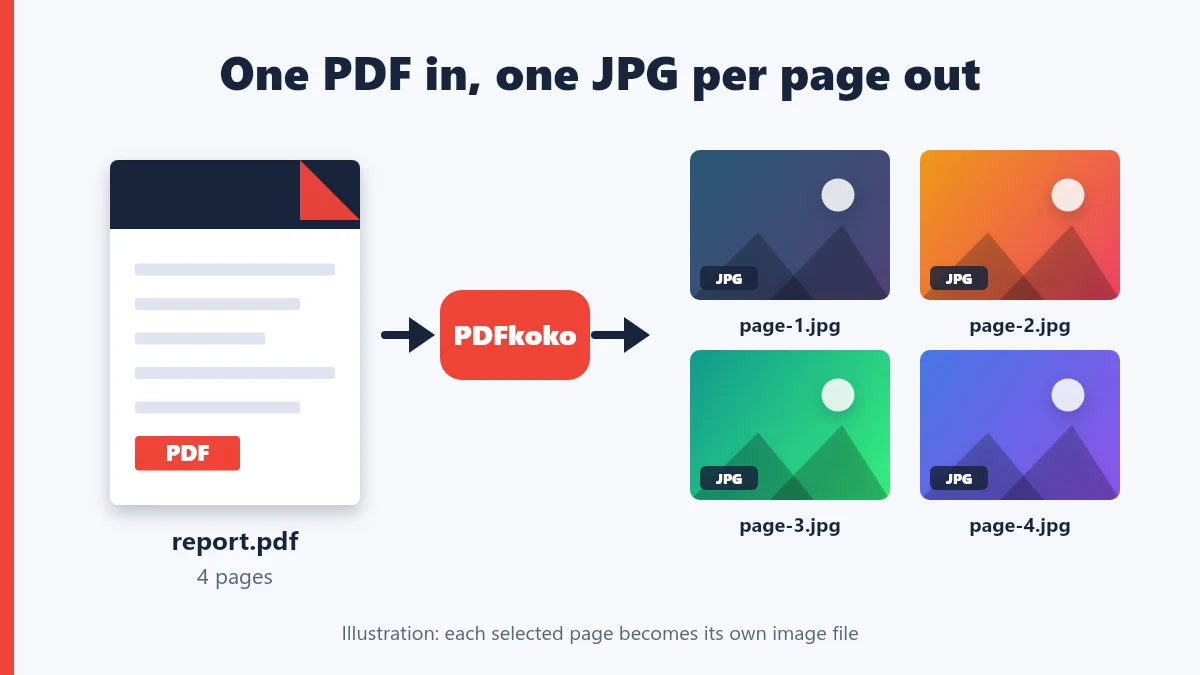
The result is one image per page. A 10-page PDF produces up to 10 JPG files, depending on which pages you choose.
Why convert PDF pages to images?
- Easy sharing. Images open almost everywhere: messaging apps, email previews, social networks and slide software.
- Just the page you need. You can send one page instead of a whole document.
- No PDF viewer required. A JPG opens on any phone or computer.
- Reuse in other documents. A page image can be placed in a presentation, a web page or a design.
How to convert PDF to JPG online with PDFkoko
PDFkoko works in your browser, so there is nothing to install and no account to create. Your pages are rendered on your own device and are not uploaded to a server.
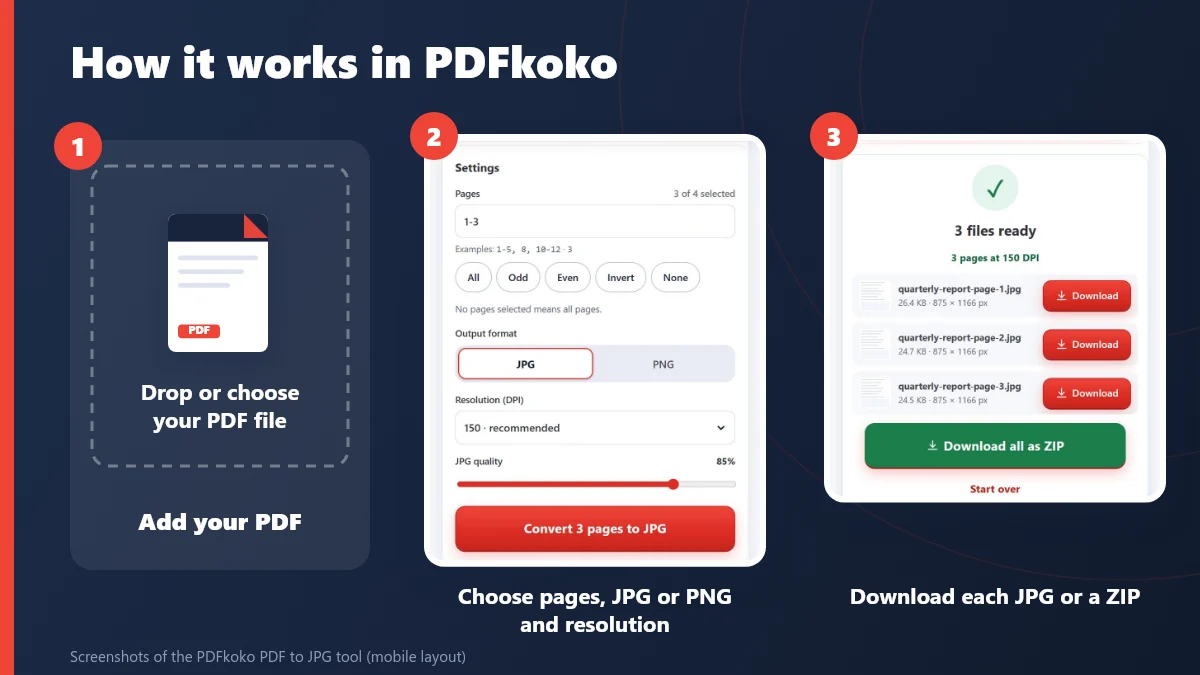
Step-by-step instructions
- Open the PDF to JPG converter.
- Choose your PDF, or drag it onto the page. You will see a thumbnail of every page.
- Select the pages you want. Click thumbnails, or type a range such as
1-5, 8, 10-12. The buttons All, Odd, Even, Invert and None help with quick selections. - Pick the output format, JPG or PNG.
- Choose a resolution (DPI). 150 is the recommended default.
- For JPG, adjust the quality slider if you want a smaller or sharper file. The default is 85%.
- Select Convert, then download each image separately, or all of them together as a ZIP file.
After conversion, PDFkoko lists every file with its size and pixel dimensions, so you can check the result before you download.
How to convert multiple PDF pages into JPG images
Select as many pages as you need, or leave the selection empty to convert the entire document. Each page is saved as its own file, named after your PDF, for example report-page-1.jpg. When you convert several pages, the ZIP download is usually the fastest way to get them all.
If you only need part of a long PDF as a smaller PDF rather than images, the Split PDF tool is a better fit.
JPG vs PNG: which format should you choose?
PDFkoko can save pages as JPG or PNG. The right choice depends on what is on the page.
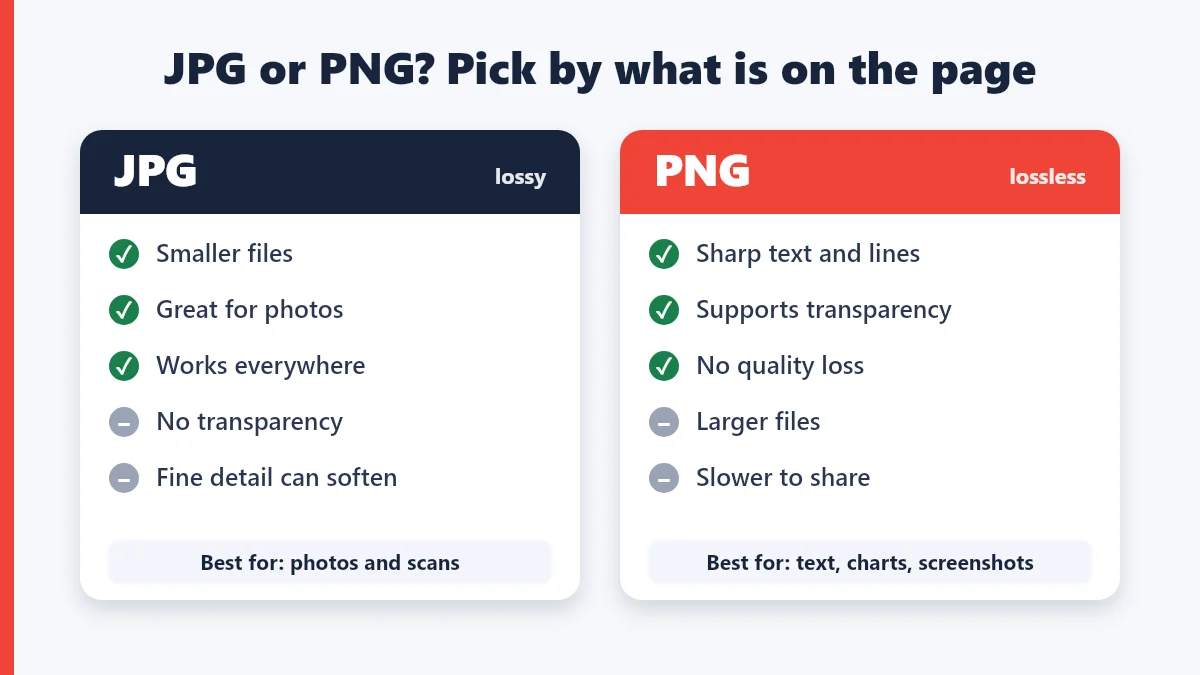
- JPG makes smaller files by discarding detail you are unlikely to notice. It is best for photos and scanned pages. It cannot store transparency.
- PNG keeps every pixel exactly, so text and thin lines stay crisp. It is best for text-heavy pages, charts and screenshots, but the files are larger.
Not sure? Convert one page both ways and compare the file sizes. For a deeper comparison, read JPG, PNG or WebP: which image format should you use?
How to keep good image quality
Image sharpness depends mainly on resolution. The number of pixels in the image is the page size in inches multiplied by the DPI you choose, so doubling the DPI doubles the width and height.
| DPI | Good for |
|---|---|
| 72 to 96 | Small previews and quick sharing |
| 150 | Everyday use on screens and in messages (recommended) |
| 200 | Sharper detail when people will zoom in |
| 300 | Printing, at the cost of much larger files |
Tip: if you only need a quick preview, 72 to 96 DPI is enough. Use 300 DPI only when you plan to print, because the files get much larger.
For JPG, quality settings around 80 to 90 percent are usually a good balance. If the files are still too large for email, run the images through Compress Image, or reduce the DPI and convert again.
Practical ways to use PDF pages as images
- Social media. Share a single page, such as a poster, a menu or a quote from a report.
- Presentations. Place a page from a document on a slide without cropping a screenshot.
- Messaging apps. Send one page in a chat where images preview instantly.
- Scanned documents. A scanned PDF is already a series of page pictures. Converting it gives you each scanned page as a separate JPG. Note that this saves whole pages; it does not pull individual photos out of a document.
Common PDF to JPG problems and fixes
- The PDF will not open. It may be password-protected. Remove the password with Unlock PDF first. The tool needs the correct password; it cannot recover a forgotten one.
- The image looks blurry. Convert again at a higher DPI, such as 200 or 300, and use a higher JPG quality.
- The files are too large. Lower the DPI or the JPG quality, or choose JPG instead of PNG.
- The browser is slow or stops. Very large PDFs are processed on your device. Convert fewer pages at a time, or try a computer instead of a phone.
- The text cannot be copied. That is expected: the page is now a picture. Use your original PDF, or the PDF to Word tool for text-based files.
PDFkoko is honest about limits: results depend on your original file and your device, and conversion quality is never guaranteed to match every PDF exactly.
Frequently asked questions
Is the PDF to JPG converter really free?
Yes. There is no sign-up, no watermark and no limit set by PDFkoko. Your device does the work, so very large files are limited by your browser's memory.
Are my PDF files uploaded to a server?
No. For this tool the pages are rendered by your own browser, and the files are not sent to a PDFkoko server. Closing or reloading the page discards them.
Can I convert only some pages?
Yes. Click the page thumbnails, or type a range such as 1-5, 8, 10-12. If you select nothing, every page is converted.
Can I convert a password-protected PDF?
Not directly. Remove the password first with the Unlock PDF tool, which needs the correct password, then convert the unlocked copy.
Will the text in the JPG still be selectable?
No. A JPG is a picture of the page, so the text becomes pixels. Keep your original PDF if you still need to copy or search the text.
Can I get PNG instead of JPG?
Yes. Choose PNG as the output format on the same page; there is no need for a separate tool.
Conclusion
Converting PDF to JPG takes a minute: add the file, choose the pages, pick JPG or PNG, and download. Choose a higher DPI when you need sharper images and a lower one when you need smaller files. You can also go the other way and combine pictures into a document with JPG to PDF; our JPG to PDF guide explains how, and Compress PDF can shrink the result.
Convert your PDF pages into JPG images with PDFkoko. Try our free PDF to JPG converter.
Related articles
PDF Conversion
How to Convert JPG to PDF Online Free: Easy Guide for Beginners
Turn photos and scans into one PDF: add your images, put them in order, choose the page size and orientation, and download. With tips for quality and file size.
Image Conversion
JPG, PNG or WebP: which image format should you use?
A quick guide to choosing between the three most common web image formats.
PDF Tips and Tutorials
5 Best Online PDF Converter Tools in 2026: Free Options to Try
A fair comparison of five online PDF converter tools: PDFkoko, iLovePDF, Smallpdf, PDF24 Tools and Sejda PDF. See what each does, how free use works and who it suits.